The lesson can’t be worked on
The slide stays still. The AI tutor talks, the student listens, then answers in the chat.
Selected work, by invitation.
Enter the portfolio password to view this project.
Back to selected workAI tutoring · Interactive learning
I redesigned the live AI tutoring classroom around a shared canvas, so students build the answer step by step instead of watching a slide.
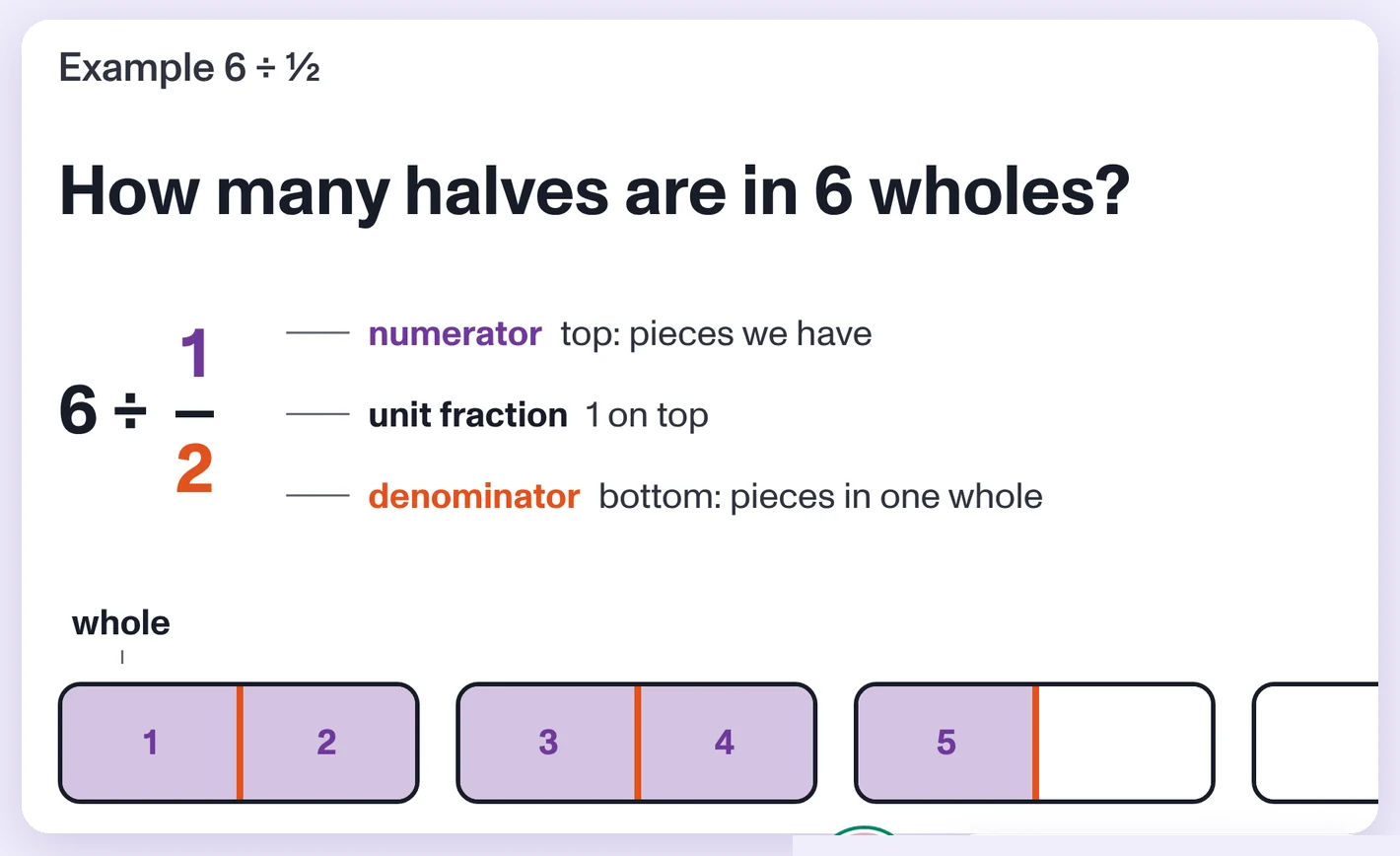
I redesigned the classroom around the canvas, built a coded prototype with Claude, designed the AI tutor’s avatars, and turned reviews with academics and customer success managers into decisions for the team.
This is ongoing work at my current company. Some details are left out, colleagues are named by role, and the screens show a prototype, not a shipped product.
Problem
Paper is an education company that brings online tutoring to K-12 students through their schools, including live math lessons taught by an AI tutor. That AI tutor taught from slide decks, so students mostly listened, and a slide could not build a visual step by step. We saw it in the data: usage, dosage, course completion, and exit ticket scores.
The slide stays still. The AI tutor talks, the student listens, then answers in the chat.
Students solve on paper and send a photo when they are done. The AI tutor only sees the final answer, so it cannot guide them step by step.
Long stretches of listening to a static slide make it hard for students to stay focused.
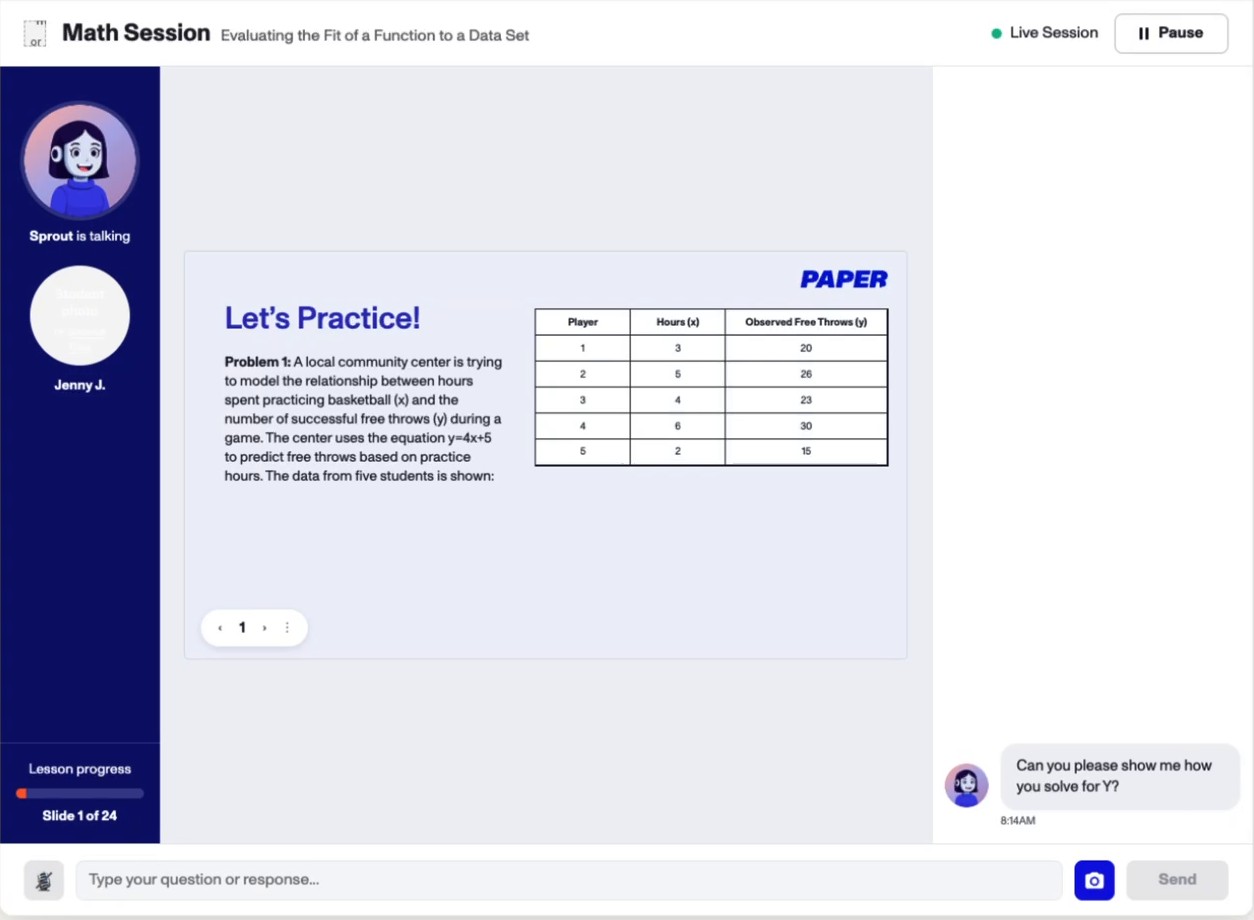
In production, the AI tutor talks over a static slide. The student listens, then answers in the chat.
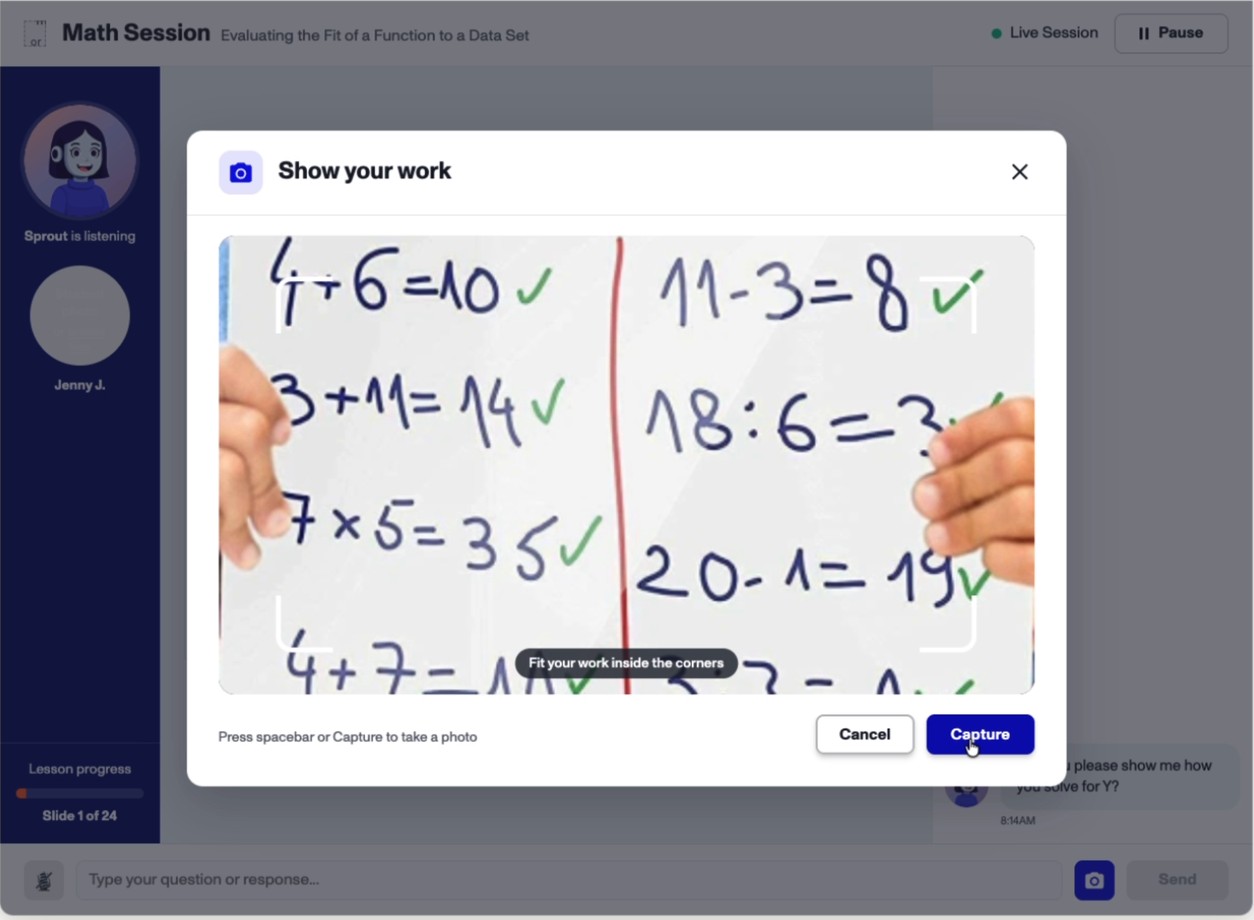
To show their thinking, students write on paper and take a photo, because the lesson itself cannot be worked on.
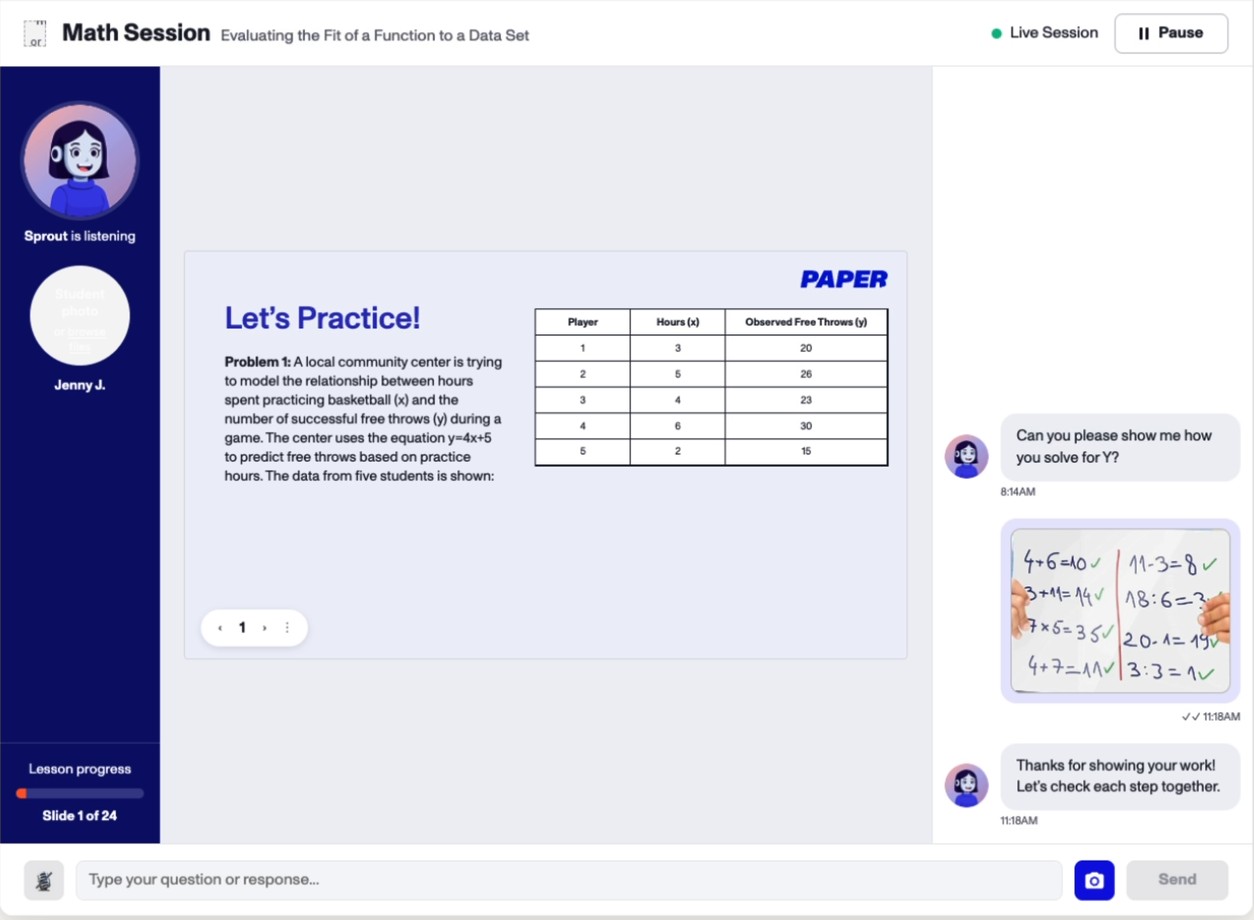
The photo goes into the chat column. The slide on screen does not change, so the work and the lesson stay apart.
The questionHow might we turn a live AI lesson from watching slides into students building the math themselves?
Put the work on the lesson itself, so students do the math on screen and the AI tutor can guide each step.
Research
I tested Aristotle end to end and reviewed StudyFetch, to see how other tutors use a canvas.
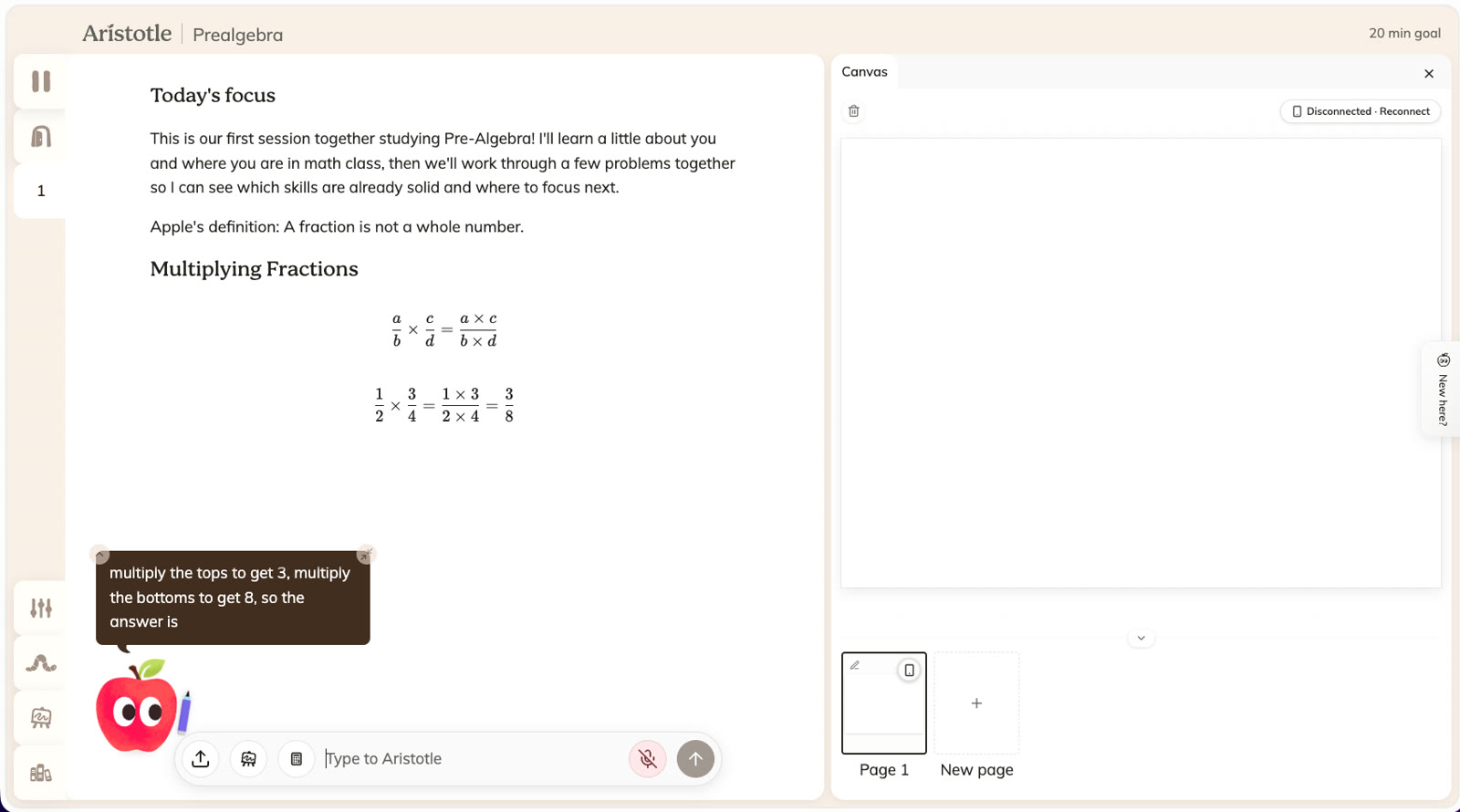
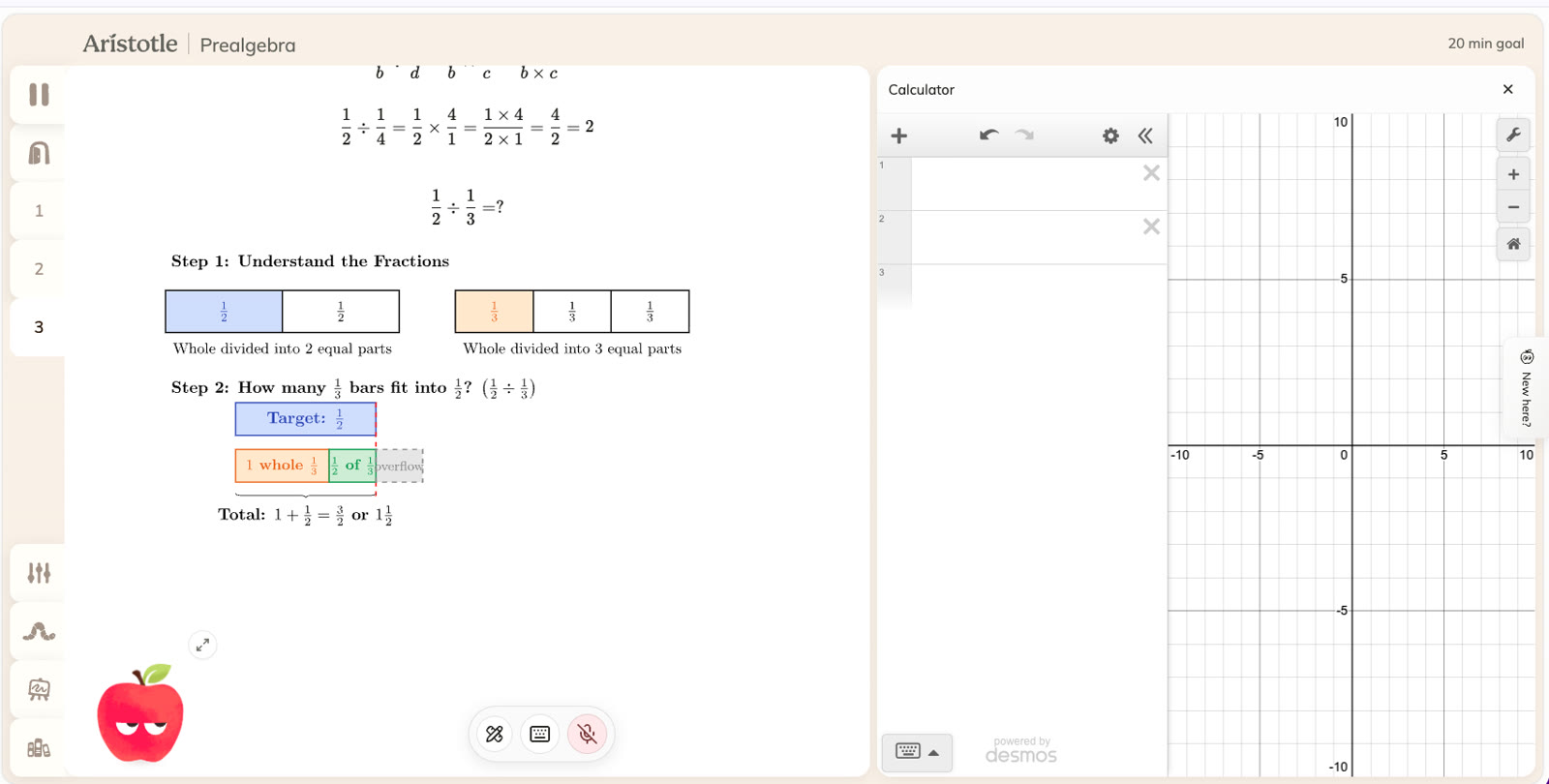
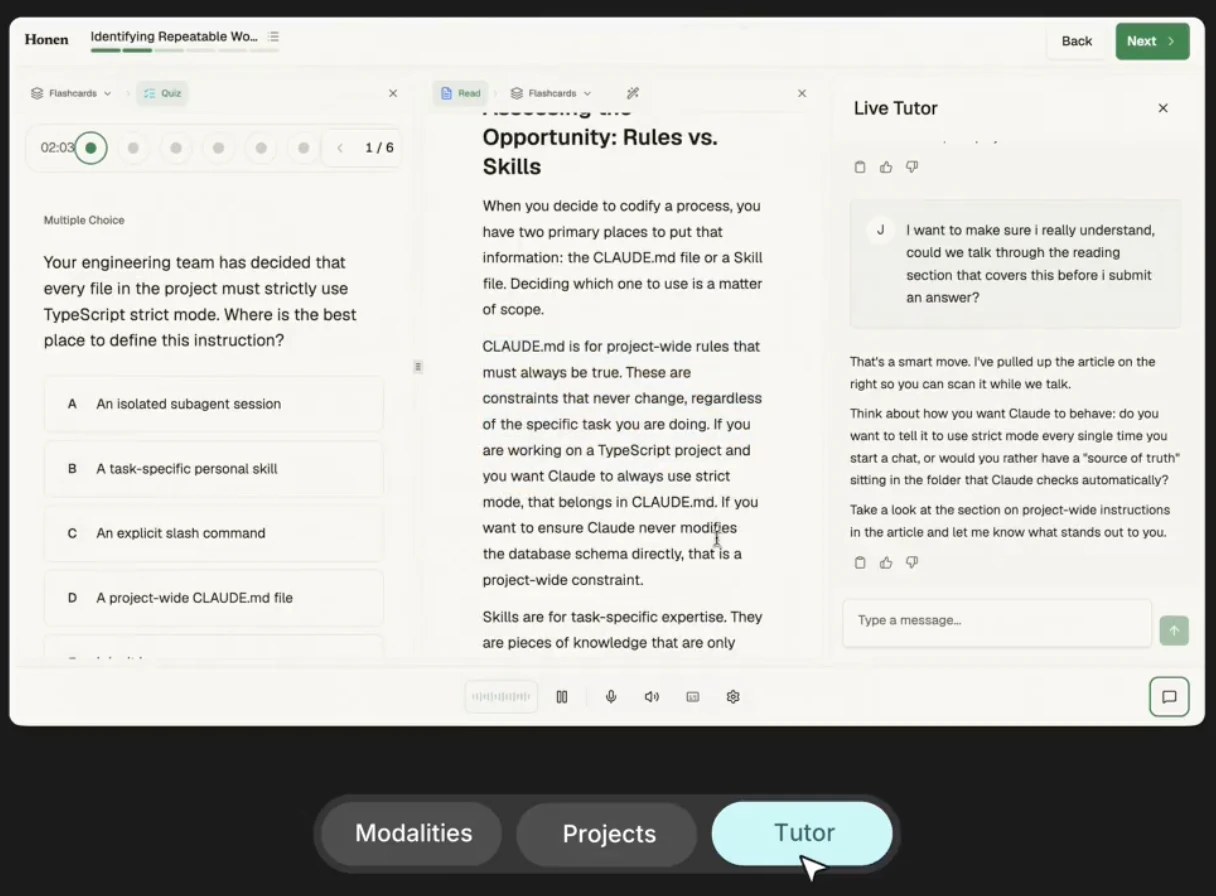
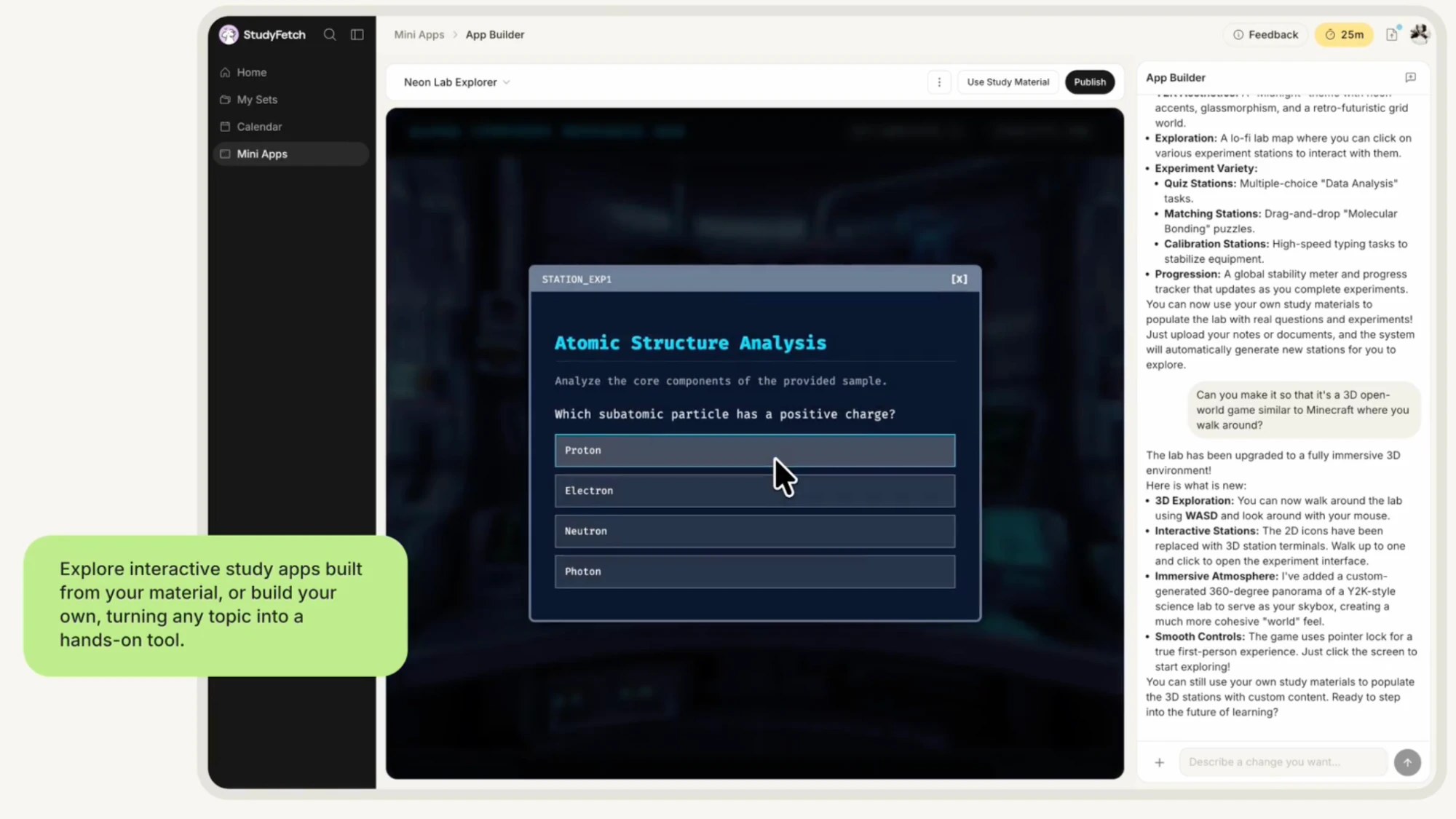
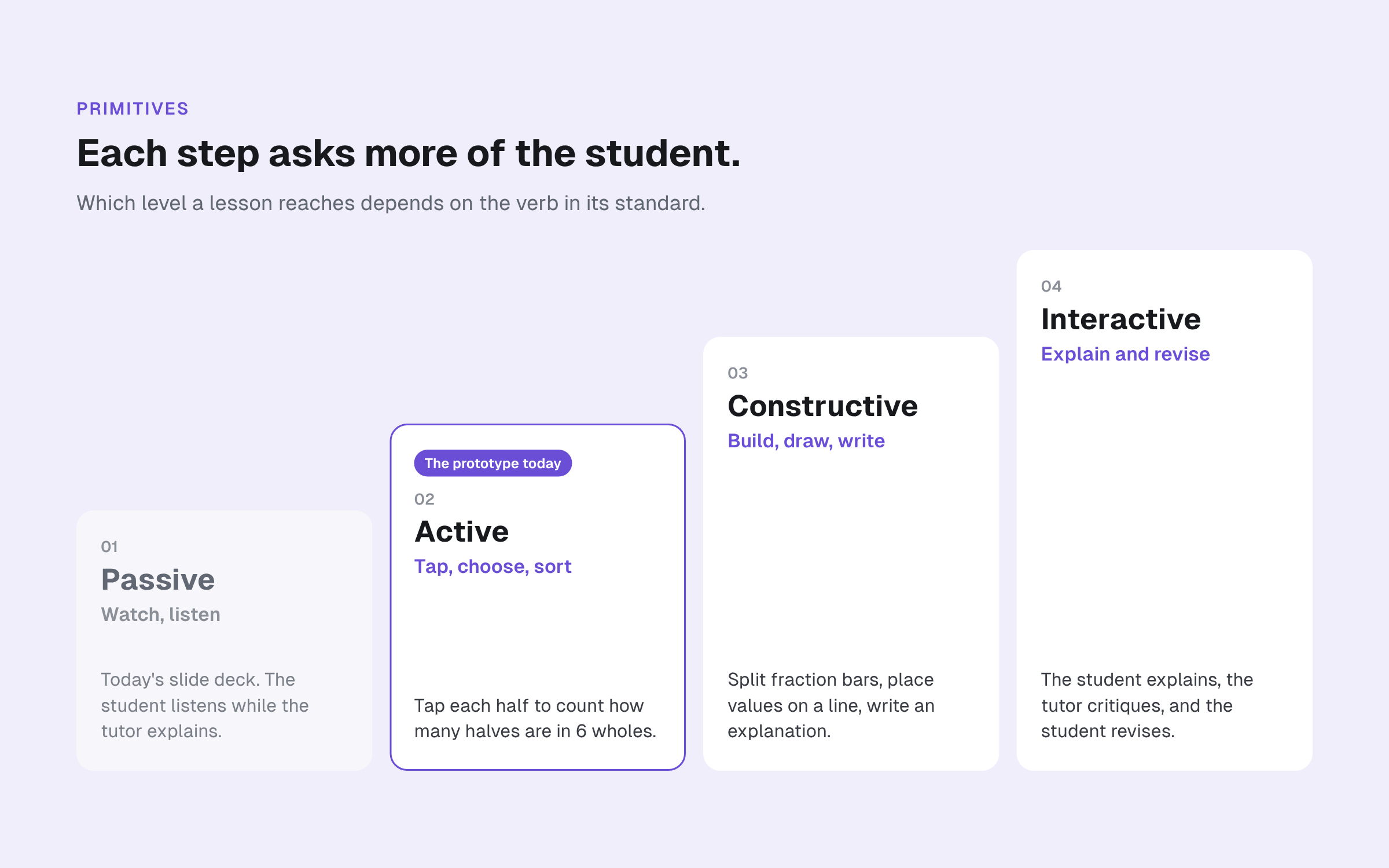
Most interactions are still choosing an answer. Our canvas focuses on building it. To judge how deep an activity goes, the team used ICAP, a learning science framework by Michelene Chi. It sorts what students do into four levels, from deepest to shallowest, and research shows students learn more at the deeper ones:
Two earlier concepts from the team. I built on both.
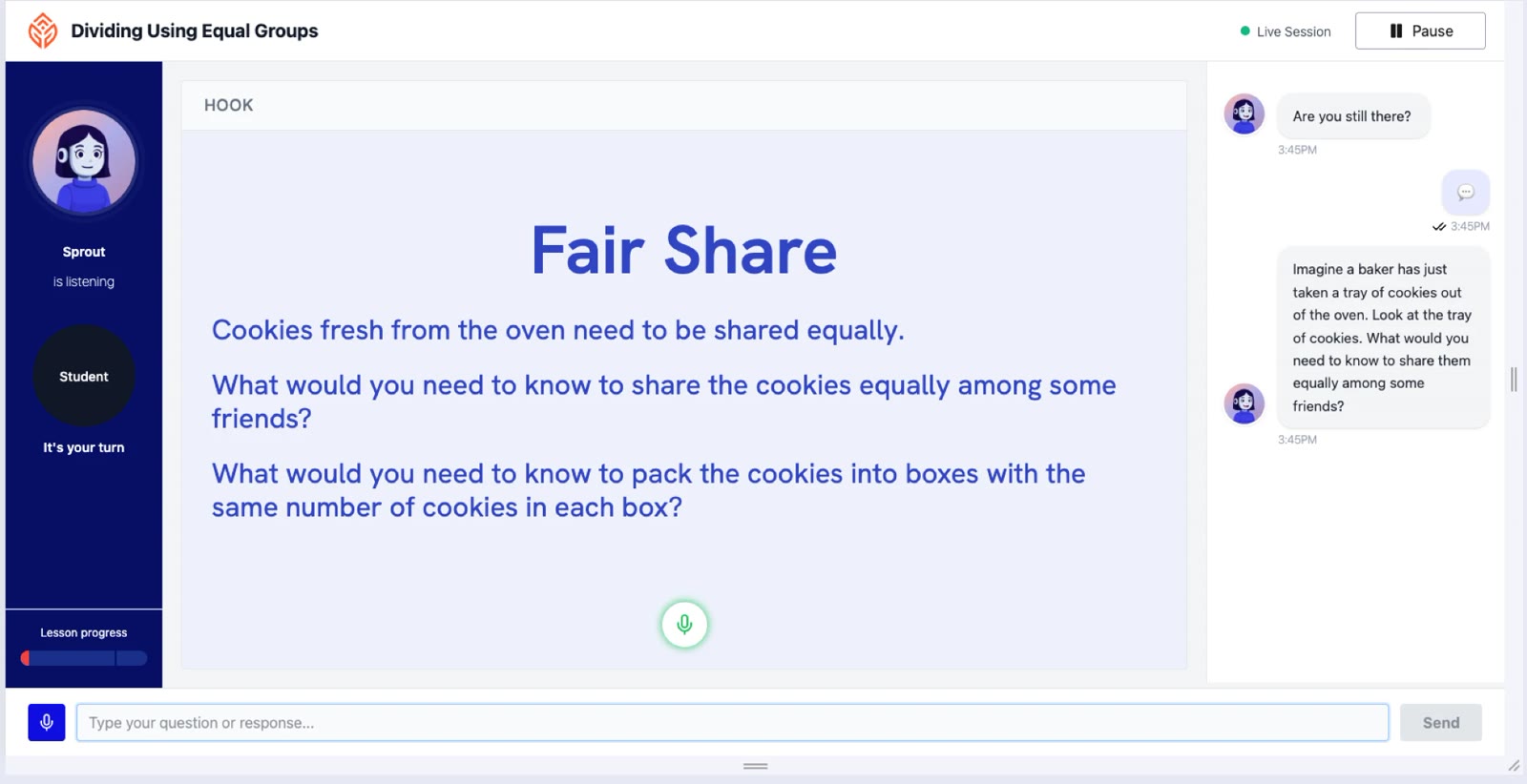
Lesson content shows as text on the canvas instead of a designed slide, so academics spend less time making slide decks.
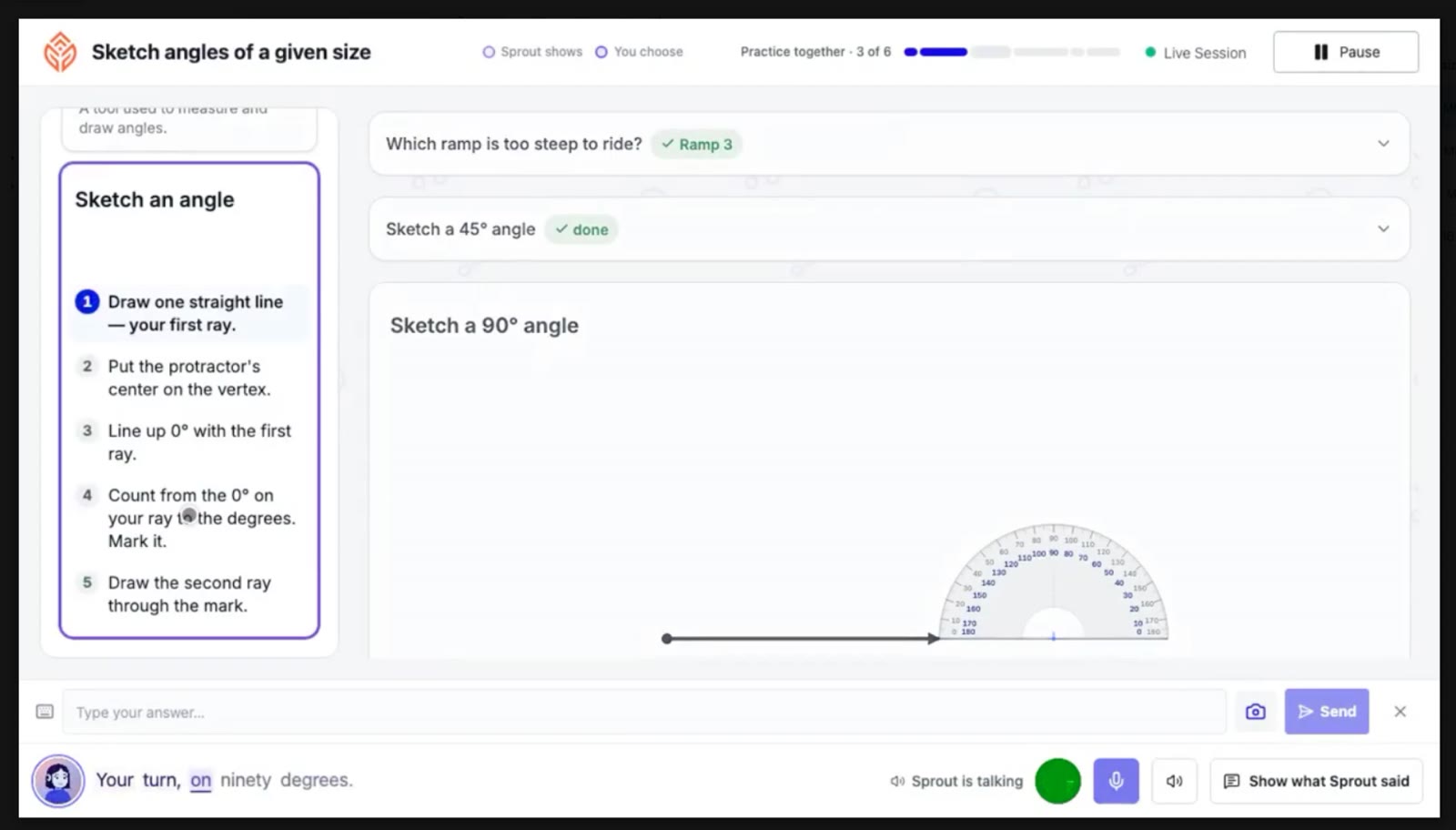
Students can interact with the lesson on the canvas, which makes it far more interactive. But too much shows at once: the steps, every task, the tools, and the tutor’s words all compete for attention. That overload is what I set out to fix.
Feedback
I walked academics and customer success managers through the design, then worked with engineering on what a small shared tool set could cover. Their feedback shaped the prototype below.
They saidAudio is the top reason a session fails, and some Chromebooks have touchscreens.
What changedA sound test before the lesson starts, and students tap to move on instead of saying yes.
They saidPause was hard to find, the tutor felt small, and speed control added clutter.
What changedA labeled Pause lesson button in the top bar, a larger tutor with the student camera closer, and no speed control in V1.
They saidTapping and picking are easy to grade, but they pull lessons back to choosing an answer.
What changedBuilding tasks stay in the plan, and grading them is tracked as an open question.
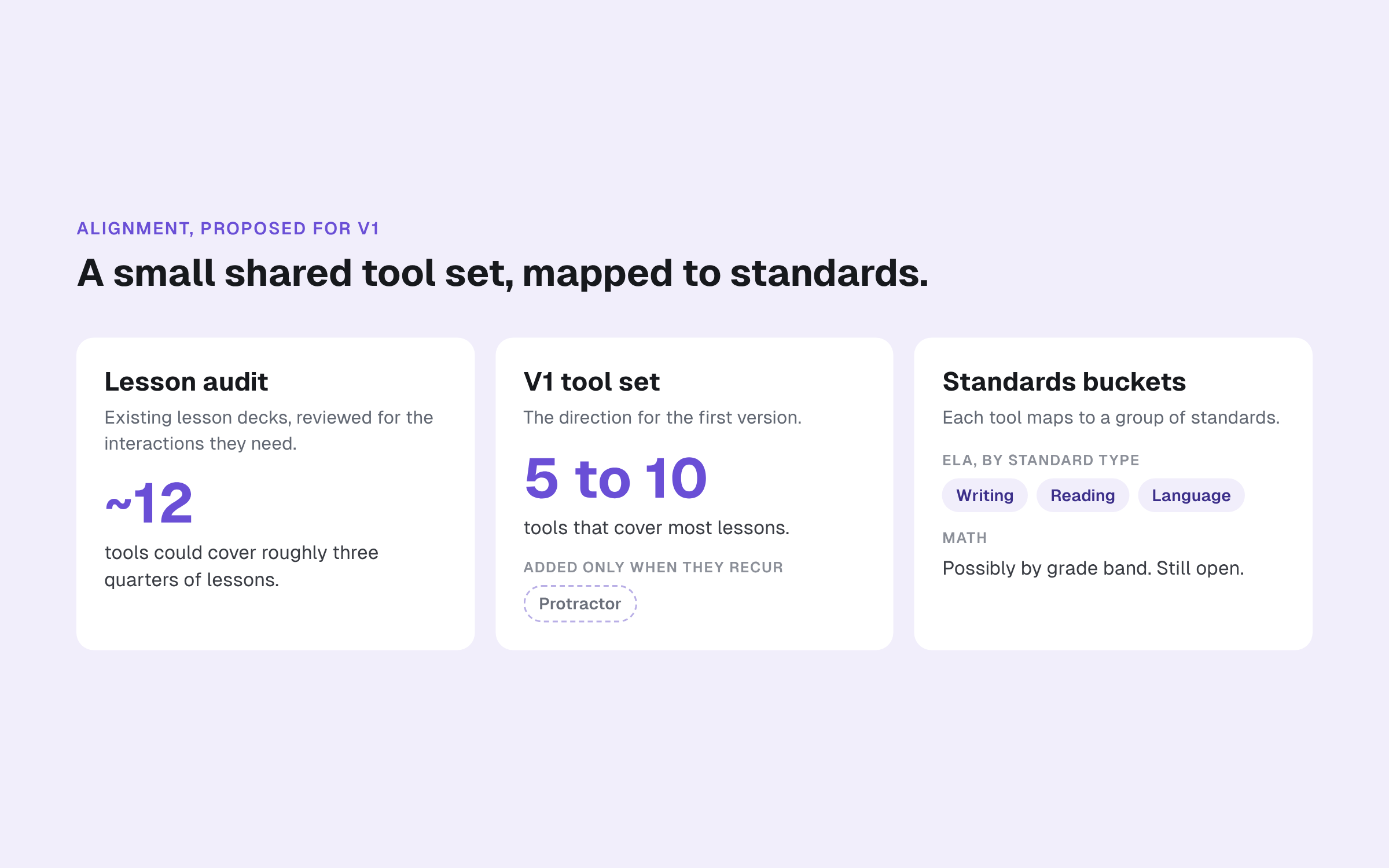
They saidAbout a dozen tools could cover three quarters of lessons.
What changedV1 starts with 5 to 10 tools, each mapped to a group of standards.
Simple taps and drag and drops are surface level engagement. Co-construction, like a whiteboard or writing and critiquing sentences, deepens thought.
Academics team, design review (paraphrased)
Product Design
Lesson context on top, the canvas in the middle, the tutor at the bottom. Each screen answers a problem found in the project.
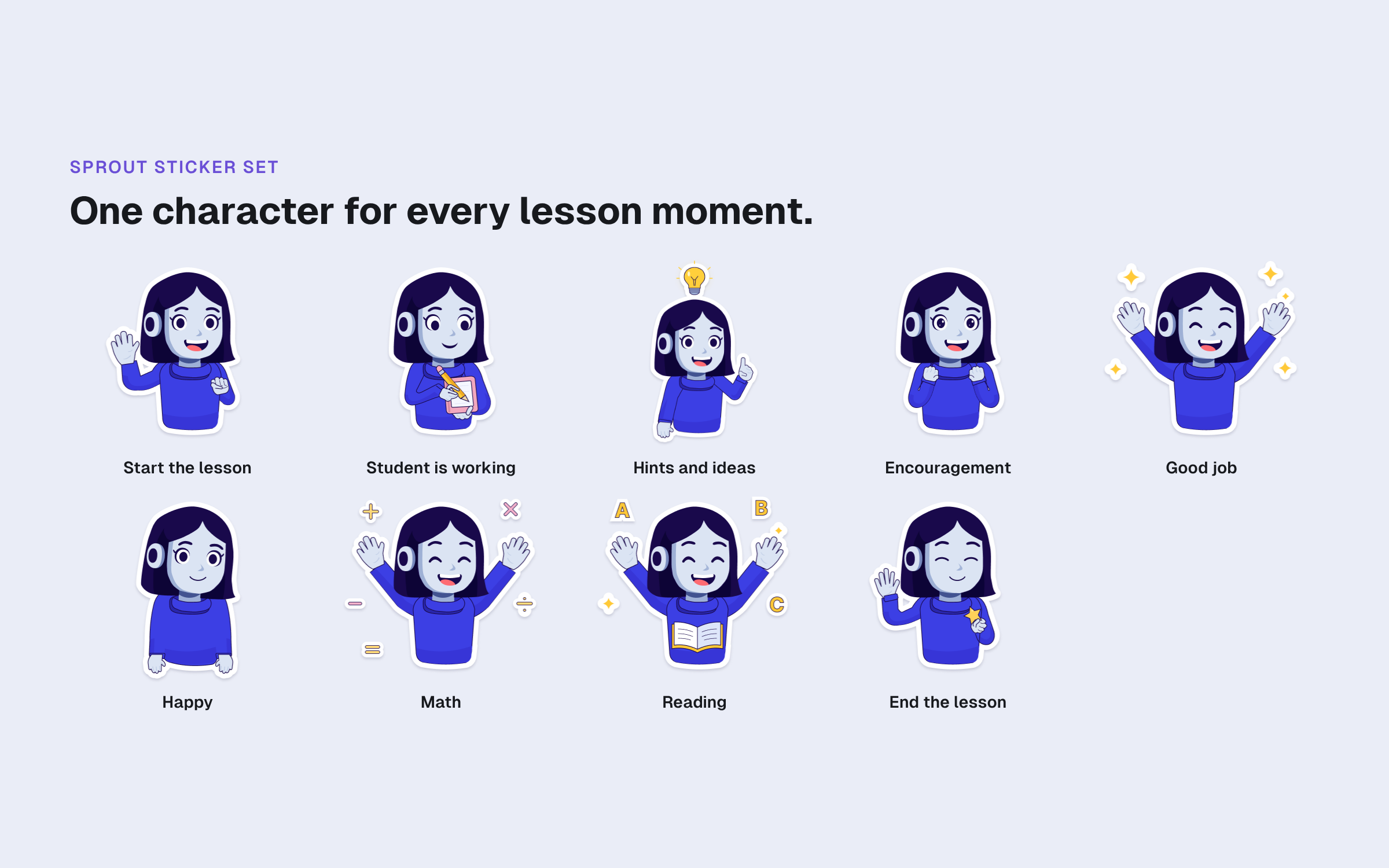
I designed the AI tutor’s avatar, logo, and a sticker set, so the tutor looks the same at every lesson moment.
Step through a fractions lesson in version 3 of the prototype.
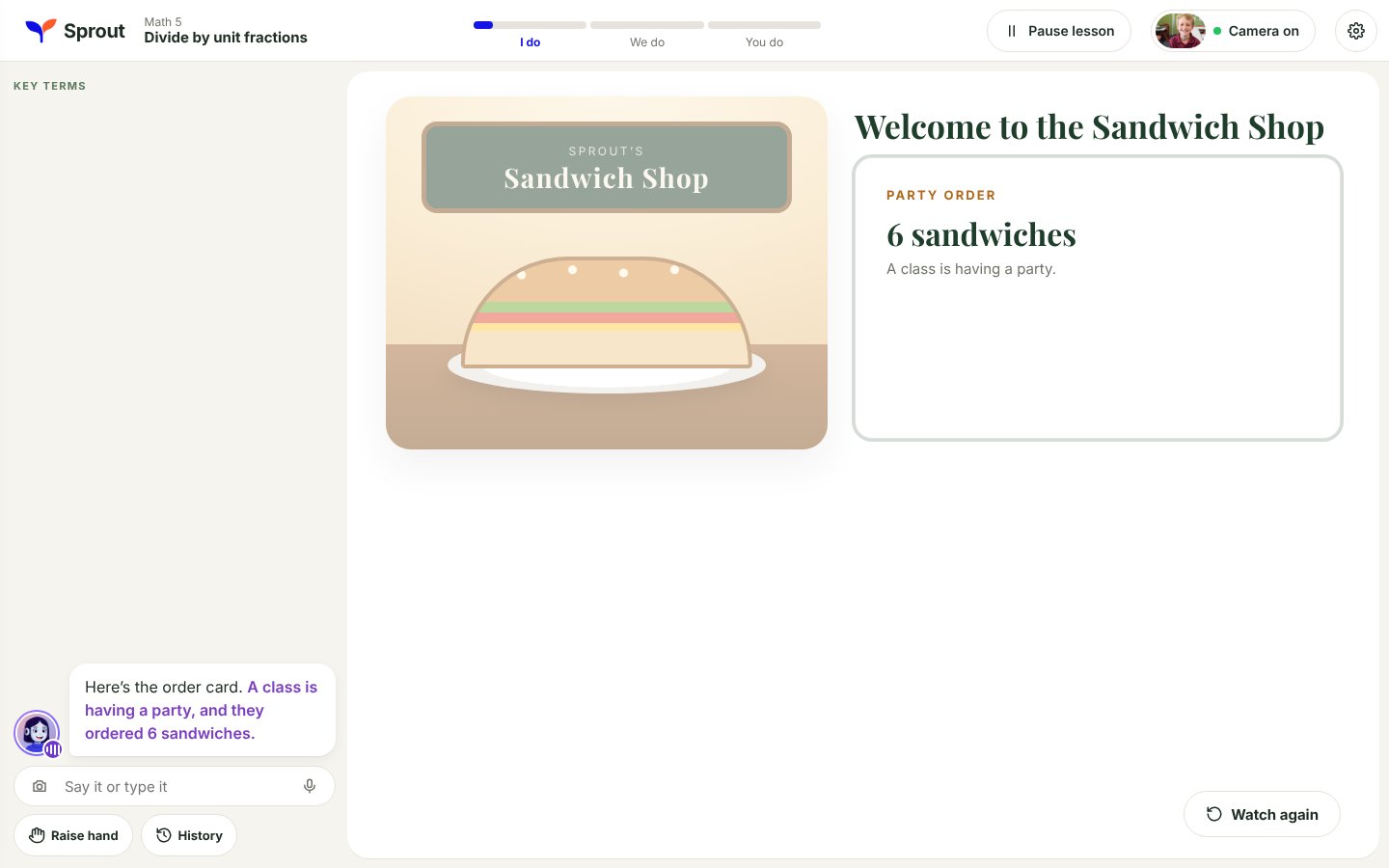
Only the current line shows, highlighted as it is spoken. Earlier lines sit behind History.
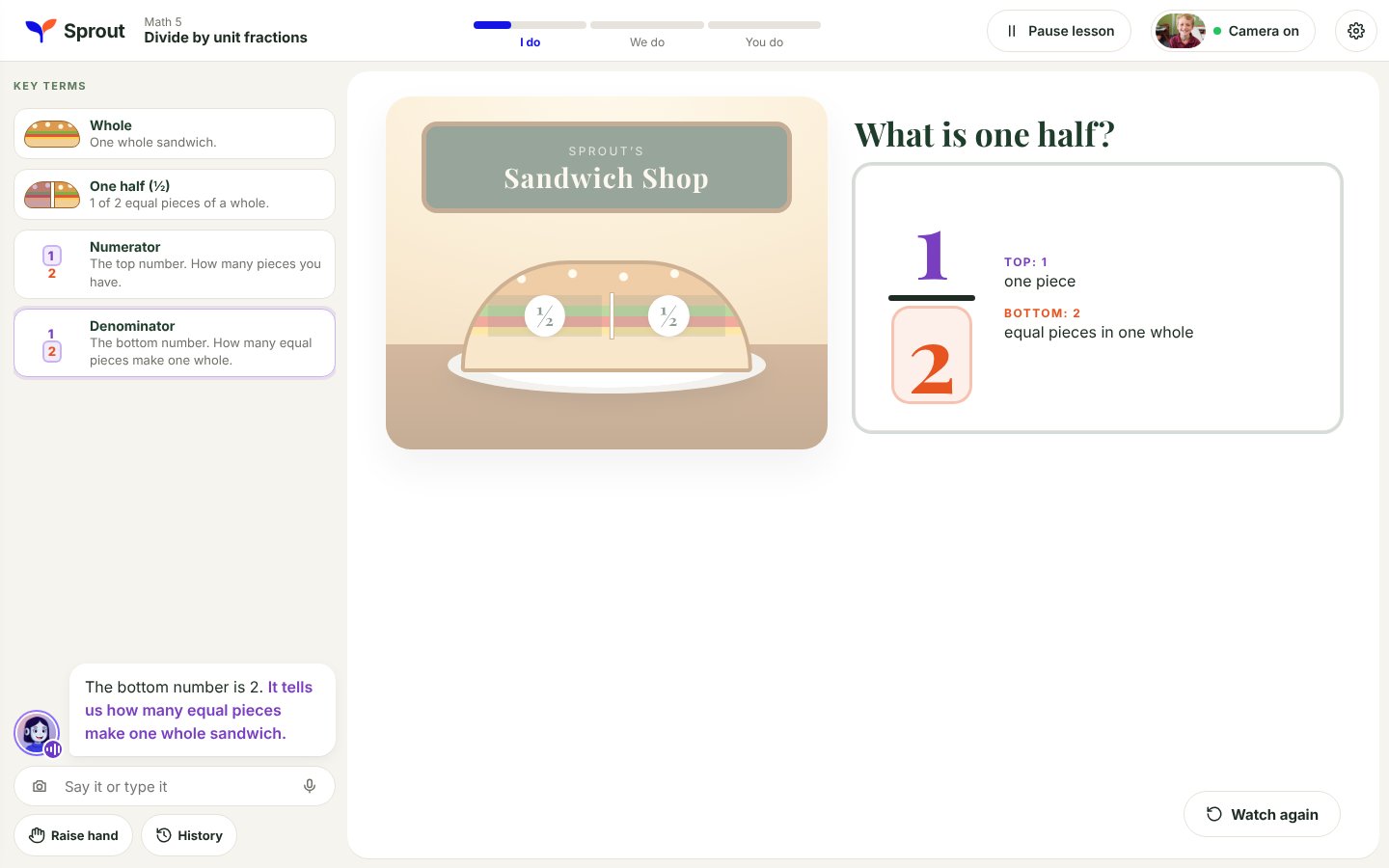
Each new word, like numerator or denominator, lands in the side panel with a small picture, so students can look back without scrolling chat.
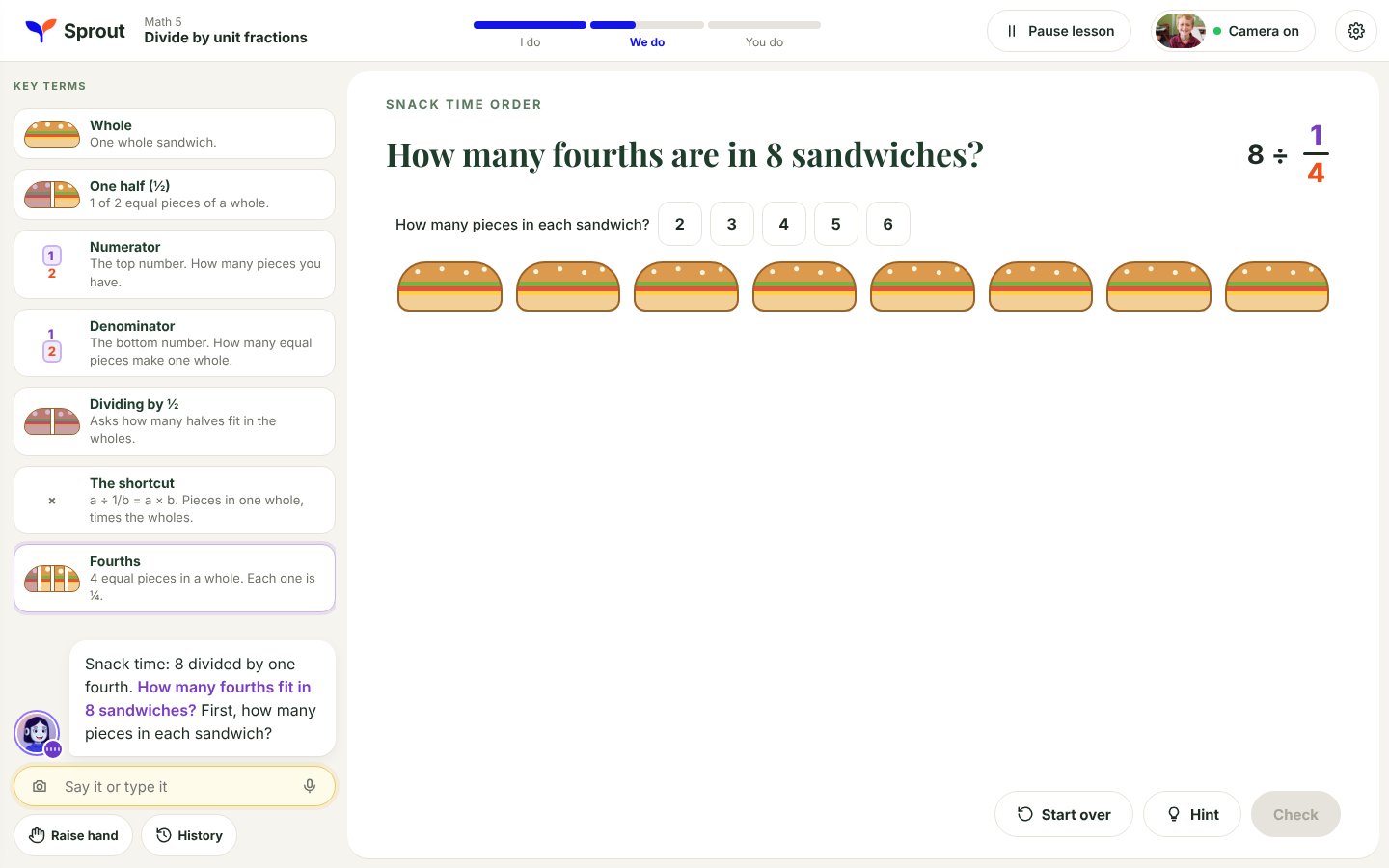
In We do, the student picks how many pieces go in each sandwich and taps to count, with Hint and Start over close by.
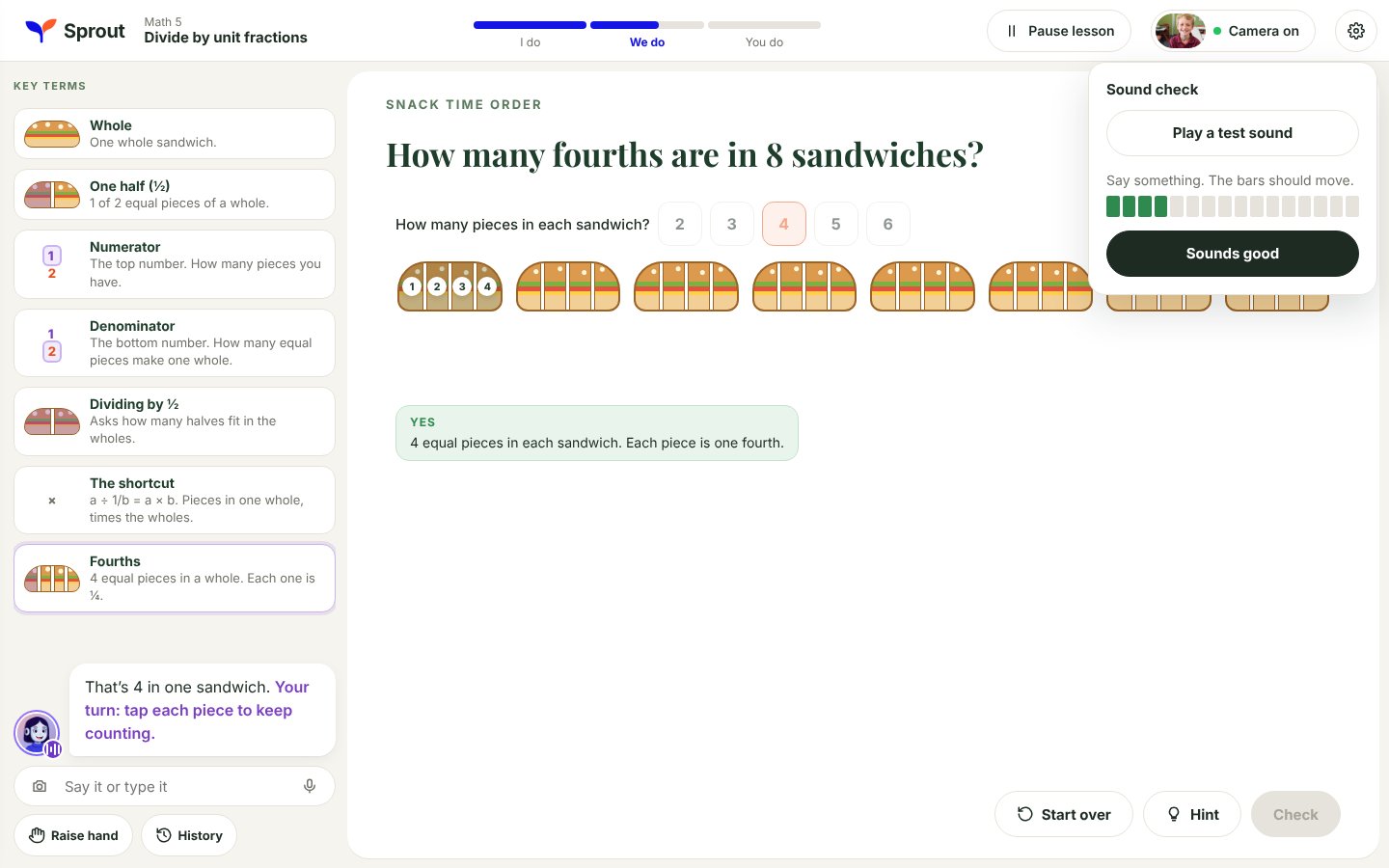
Audio is the top reason a session fails, so there is a test sound and a live microphone meter.
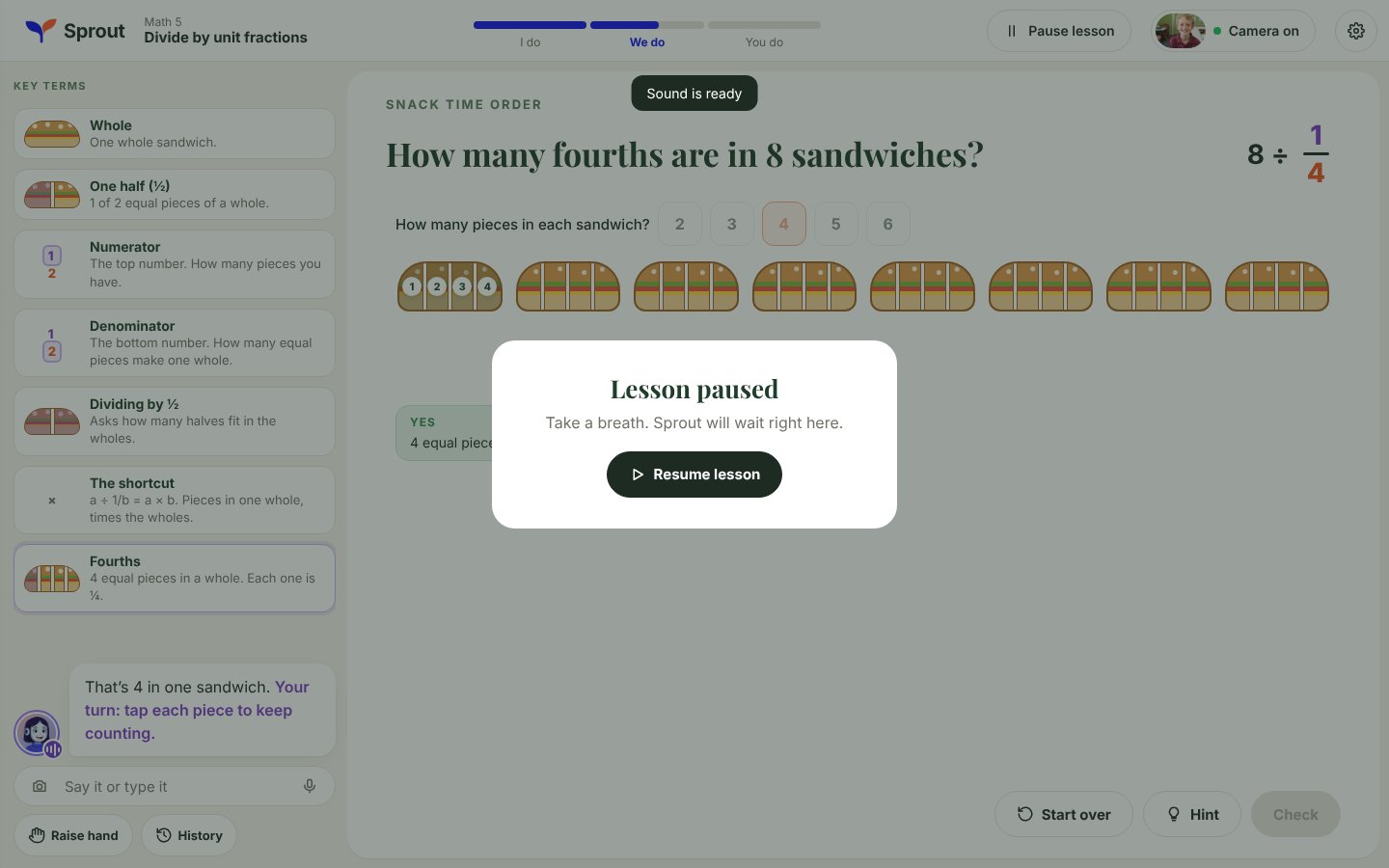
Pause lesson sits in the top bar. It is separate from Raise hand, which interrupts to ask something.
I turned an existing lesson deck into coded prototypes with Claude, so reviewers could try the interactions and I could test ideas quickly. Here are two rounds.
Version 3 The latest round. The chat moves into the side panel, and key terms collect there as the tutor introduces them.
Version 2 The earlier round. A lesson outline sits on the left and the chat runs along the bottom.
Results
Academics and customer success managers have reviewed the prototype. Usability testing with students is next, so outcome numbers will follow.
Coded with Claude from a real lesson deck.
Academics and customer success managers.
Mapped to groups of standards.
On Chromebooks.